— Feature guide —
Plain-language descriptions of every feature — what it does, how it helps your shop, and which plan includes it.
← Back to homepageWork Orders
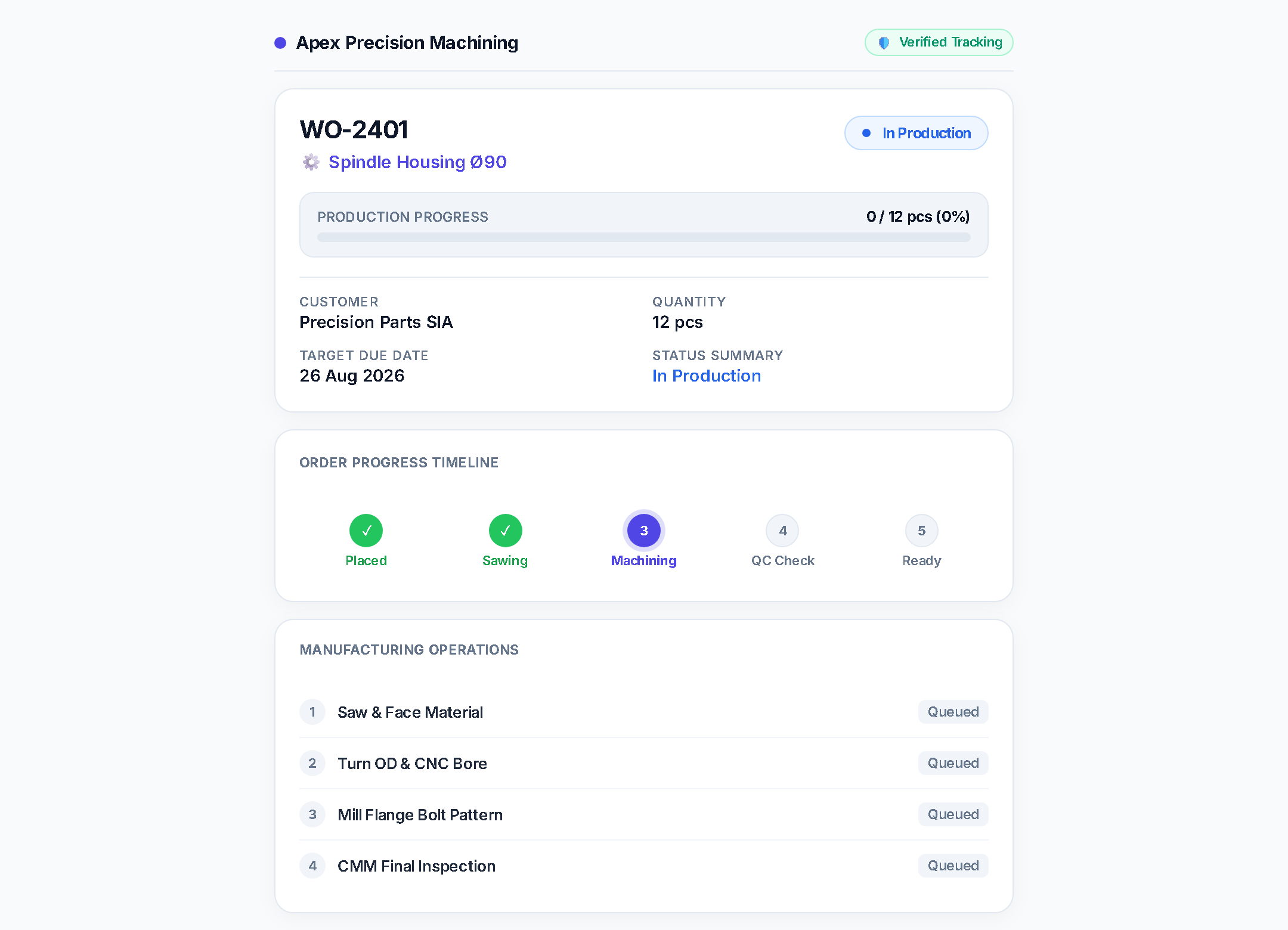
Create a job for every customer order. Each work order tracks the customer, part number, quantity, due date, status, and material. You can filter by status (running, pending, hold, late) and search by part, customer, or material. Work orders are the central record everything else connects to.
Production Routing
Define the sequence of operations (machines and workcenters) a job must pass through — for example: Saw → Lathe → Mill → Quality check → Packaging. Each operation has a planned setup time and machining time. Operators follow this route in order, and you can see at a glance where each job is stuck.
Scheduling & Workcenter Load
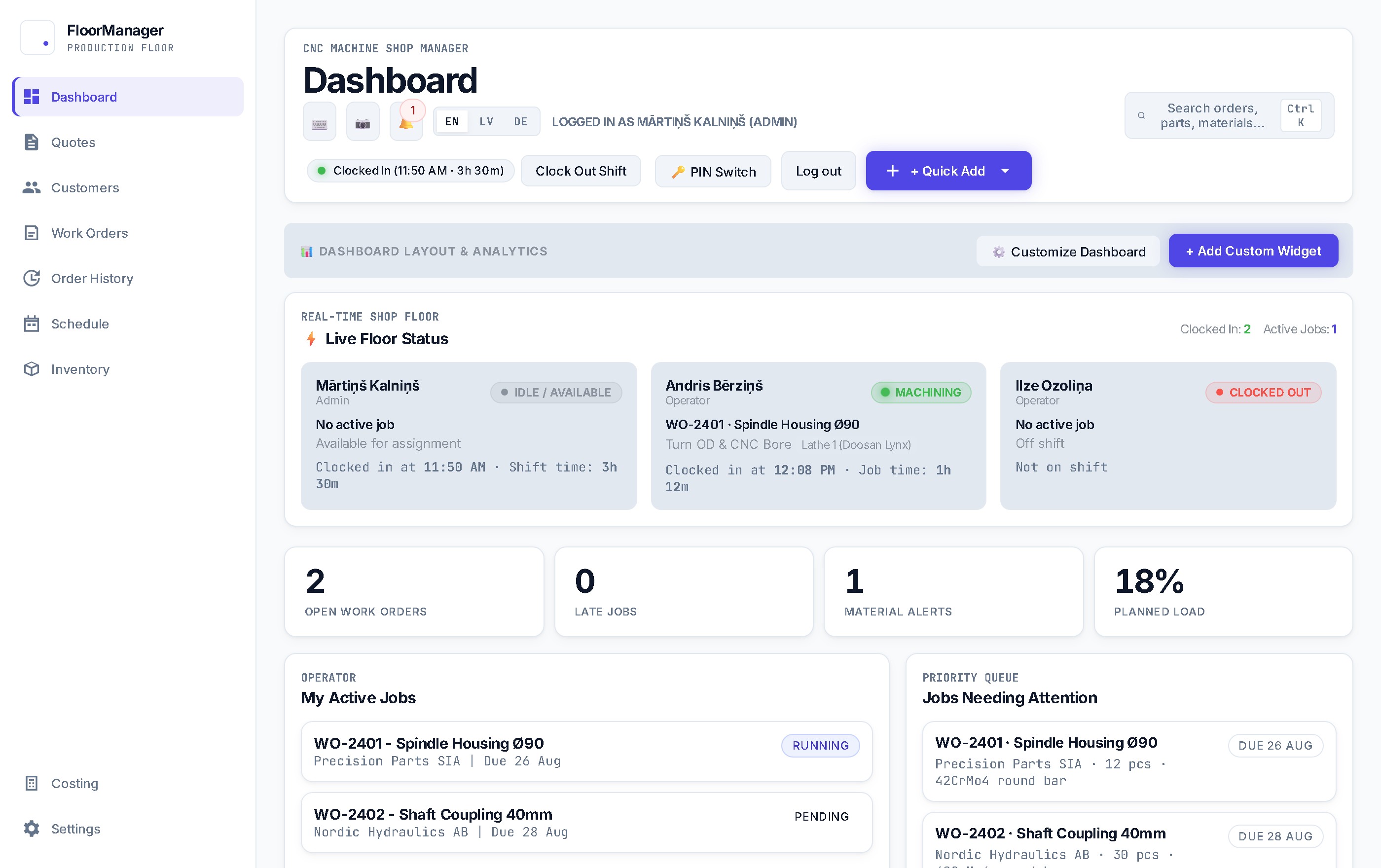
A calendar view shows when each operation is planned to run on each machine. The dashboard's Workcenter Load panel shows how fully booked each machine is this week — a quick check before committing a due date. Overloaded machines show visually so you can rebalance before a job runs late.
Due Date Suggestion
Click "Suggest due date" on a new work order and FloorManager calculates a realistic completion date based on current workcenter load, planned shift hours, and material availability. Stops you from committing to a date your shop can't hit.
Work Order Templates
Save any work order's fields (customer, overhead %, material per part, priority, notes) as a named template. When creating a new job for a repeat customer or part, click "Load Template" and the form pre-fills — fewer clicks, less chance of errors on routine jobs.
Priority Levels
Mark jobs as Low, Normal, High, or Urgent. The "Jobs Needing Attention" dashboard panel surfaces late or high-priority jobs automatically. Operators always know what to pick up next without asking the manager.
Hold & Comments
Put any job on hold with a written reason (waiting for material, customer change, fixture not ready). Operators can add timestamped production notes directly on the work order — a running log of what happened, visible to the whole team.
Time Logging
Operators log setup and machining time against each operation. They tap Start when they begin, Stop when they finish. The system records who logged what, on which machine, on which job. You get an accurate picture of where your labour hours actually go — not a guess.
My Active Jobs
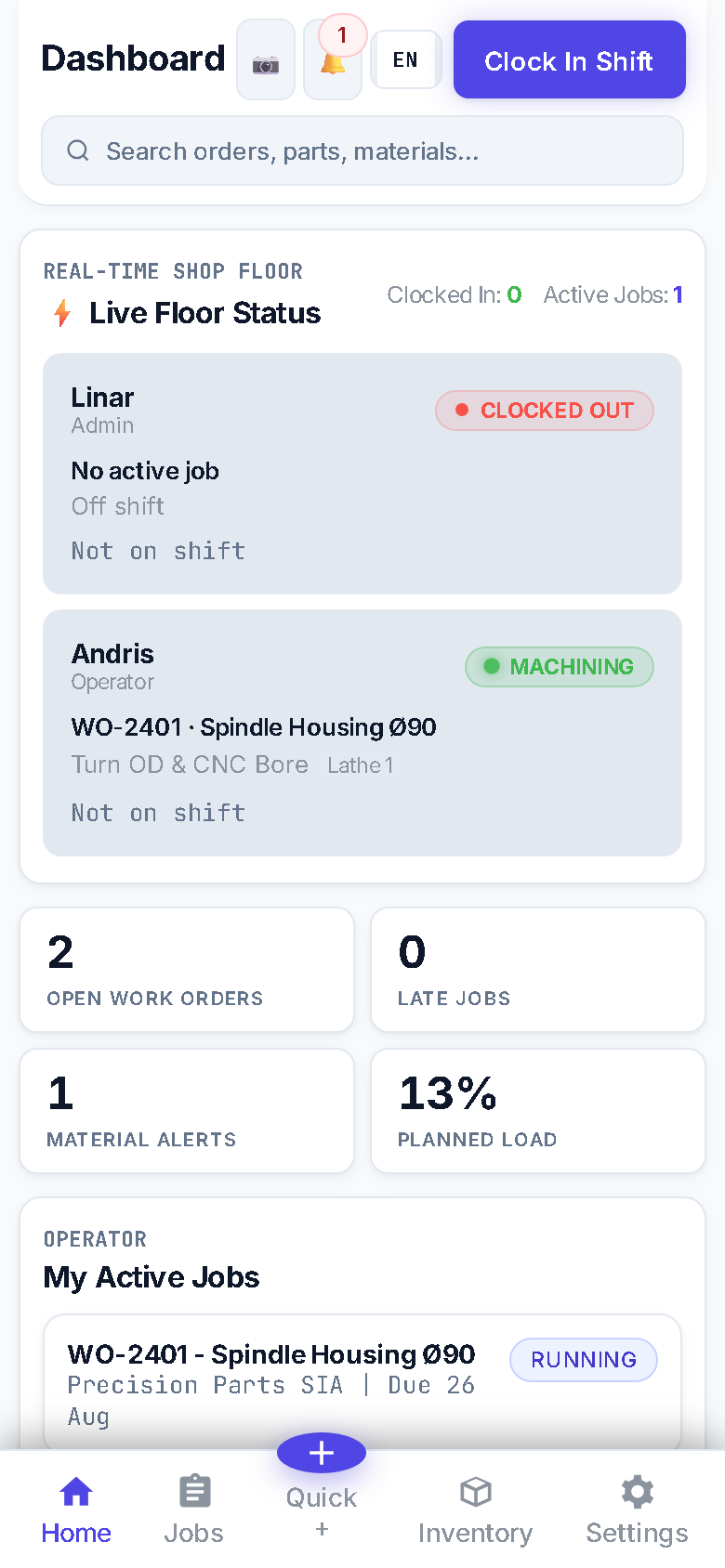
Each operator sees their own dashboard panel showing only the jobs they are currently running. No need to scan the full job list — they tap in, see their work, and get started. Useful in shops with 4–20 operators sharing a tablet on the floor.
Good / Reject Part Counts
At the end of an operation, the operator records how many good parts and how many rejects came off the machine, with an optional reject reason (tool wear, setup error, material defect, etc.). Feeds directly into the scrap rate KPI on your dashboard.
PDF Traveler Printing
One click prints a shop traveler for any work order — customer, part, due date, quantity, full routing with planned times, material spec, and a scannable QR code. The traveler travels with the job through the shop. Also prints a small shipping label when the job ships.
Saw / Material Cut Gating
When the Saw operation is completed on a work order, FloorManager automatically deducts the consumed material from your inventory. Prevents phantom stock where your system says you have 40 m of bar but the saw already cut 22 m for three jobs nobody updated.
Drawing / PDF Attachment
Attach the customer's drawing PDF directly to the work order. Operators can open it on screen without searching a shared drive. The drawing also prints on the traveler's last page so the paper copy goes to the machine with the job.
Material Inventory
Track every raw material — bar stock, flat bar, sheet, tube, fasteners — with current stock level, reorder point, unit (mm, m, or piece), and unit cost. Stock changes automatically when saw operations complete. You can also manually adjust stock after deliveries or stocktakes.
Low Stock Alerts Dashboard
A dashboard panel lists every material that has dropped to or below its reorder point, sorted by how far below the threshold it is. You see the worst shortages at the top. No more discovering you're out of 40 mm bar when a job is already on the machine.
Material Reservation
When a work order is created, FloorManager reserves the required material quantity so two jobs can't both count on the same stock. The inventory screen shows both "on hand" and "reserved" quantities, giving you the true available amount.
Costing Analysis — Quoted vs Actual
For any work order, see the full cost breakdown side by side: what you quoted (based on planned hours and workcenter rates) vs what it actually cost (based on logged hours). Broken down by material, setup, machining, packaging, and overhead. Shows immediately which jobs you're losing money on and by how much.
Operator Hours Report
A table showing every operator's total logged hours — split between setup time and machining time — and how many work orders they've worked on. Useful for payroll verification, productivity benchmarking, and spotting if one operator is consistently running long on setup.
Weekly Parts Output Report
Shows how many parts your shop completed each week. Lets you spot seasonal patterns, measure whether a new machine or operator improved throughput, and give customers a realistic lead time based on actual output capacity rather than guessing.
Material Usage Report — Actual vs Planned
Compares the material your routing says jobs should consume against what was actually cut. Persistent over-consumption on a specific material or part number is an early sign of setup errors, scrap, or a wrong material spec — catchable before it becomes expensive.
CSV Exports
Export your active work orders, completed order history, and full time log as CSV files. Import into Excel, your ERP, your accountant's tool, or your own reporting system. Includes all fields: part, customer, PO, material, actual hours, reject counts, operator, workcenter, and timestamps.
Full Audit Trail
Every change in the system is logged with who made it and when — work order edits, status changes, license updates, user changes. If a job's due date was moved, the audit log tells you who moved it and from what date. Essential for ISO audits, customer disputes, and accountability in larger teams.
Barcode & QR Scan to Open
Every printed traveler includes a QR code. Scan it with a phone or tablet and FloorManager immediately opens that work order — no searching, no typing the job number. Operators on the floor can clock in to a job in under 3 seconds. Works with any camera-equipped device, no dedicated scanner hardware required.
Offline Sync
Operators can keep logging time even when the shop Wi-Fi drops or a device loses signal. All entries are queued locally and sync to the server the moment the connection returns. No lost data, no gaps in time logs, no operator stopping work to wait for the app to reconnect.
API Access
Connect FloorManager to your own tools via API. Pull work order data into your ERP, push new jobs from your quoting system, or build a custom dashboard on top of your shop data. Full documentation provided on request.
Custom Branding
Replace the FloorManager logo and colour scheme with your company's branding. Useful for shops that show the app to customers on a screen, or companies that want a white-labelled internal tool.
Priority Support & Onboarding
A dedicated onboarding session to get your workcenters, operators, and first jobs set up correctly. Priority response on support requests — you're not waiting in a queue. Useful for shops migrating from a legacy system or with complex routing requirements.
Private Isolated Database
Your shop's data lives in a dedicated PostgreSQL database — never shared with another customer. Encrypted at rest and in transit. Daily backups retained for 30 days. Hosted in the EU (Frankfurt), GDPR-compliant.
Unlimited Work Orders & Operators
No per-seat pricing, no job limits. Add every operator in your shop, run as many work orders as you have jobs. The price is per shop, not per person.
Role-Based Permissions
Admins have full access including settings, costing, and user management. Operators can log time and update job status but cannot edit orders or see costs. Set the right access level per person — no operator accidentally deleting a job or seeing your margins.
14-Day Free Trial
Every plan starts with a 14-day free trial with all features unlocked. No credit card required to start. You only pay if you keep it after the trial ends — and you can cancel at any point before then with no charge.
Works on Any Device
FloorManager is a progressive web app — it runs in any browser on desktop, tablet, or phone. Add it to your home screen for a full-screen app experience. No download from an app store, no installation, no IT department required.